
 العربية

IT Support Centre
Tel : +968 26850100 – Ext. 333
Email: askits@su.edu.om
Office: LRC, 2nd Floor

Technology Training Center
JOIN NOWAbout
The Information Technology Services (ITS) department at Sohar University provides secure, reliable, and innovative technology services to the entire university community. We ensure that our core systems, networks, and digital resources operate efficiently to support learning, teaching, research, and administrative activities. Our skilled and experienced team covers a wide range of technical areas, helping students, staff, and faculty make effective use of technology.
As an ISO/IEC 27001 certified department, we are committed to maintaining the highest standards of information security, protecting university data, and ensuring the confidentiality, integrity, and availability of our systems and services.
Roles and Responsibilities
- Planning, managing, and directing technology projects that support the university’s academic and administrative operations.
- Maintaining and securing the university’s network, systems, servers, communication tools, computer labs, and smart classrooms.
- Using strategic planning to improve current IT services and prepare for future needs.
- Providing training and support to ensure technology is used effectively and securely across the institution.
Services

The IT Support Centre is a free service for Sohar University staff and students. It provides assistance with connecting to and using the University’s network, applications, and email system. The centre serves as a central resource where you can report issues, request help, and find answers to your technology-related questions.
Through the IT Support Centre, you can:
- Report problems with the network or wireless system.
- Get help with email, user accounts, and university applications.
- Seek assistance with computer issues, including virus-related problems.
- Receive guidance on safe computing practices.
For staff, support requests can be submitted through SUCRM, the official support and request management system.
For students, a dedicated support section is available within the student portal, allowing direct communication with IT staff.
Location: LRC 2nd Floor
Phone: 333
Email: AskITS@su.edu.om
Opening hours:
| Days | Time-From | Time-To |
|---|---|---|
| Sunday – Thursday | 08:00 | 04:00 |
| Friday – Saturday | Closed | |
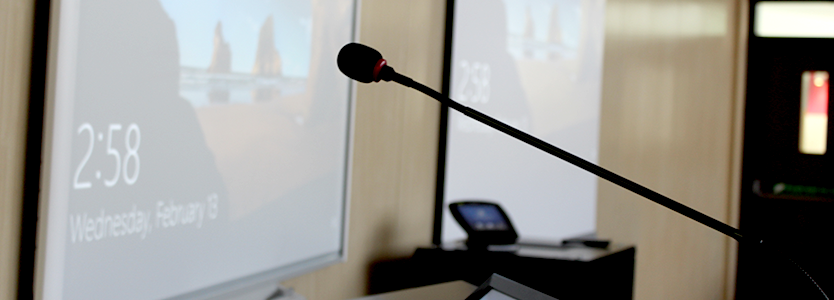
A specialized team of Information Technology Services in audio/visual solutions, can help you with all your audio and visual needs at Sohar University.
Audio Visual Equipment in Classes
- Our team has equipped all classrooms, activity halls, and computer laboratories with audiovisual equipment. The team is always ready to support special requirements and to train staff in using this equipment and related facilities.
- Staff can request support by calling the IT Support Centre at extension 333 or by submitting a request through SUCRM.
Equipment:
All classrooms are equipped with a data show projector, a computer, and a network connection. Some classrooms and theatres are equipped with advanced sound systems and smart podiums.
Hours of Operation:
| Days | Time-From | Time-To |
|---|---|---|
| Sunday- Thursday | 08.00 | 18.00 |
The Office of Information Technology Services (ITS) would like to take this opportunity to wish you an enjoyable and productive academic year in SU. ITS taking advantage of information technology to support the pursuit of knowledge in an integrated environment. We believe technology can develop an open, group/working well together, and bringing together as one culture.
To help you get started, we’ve prepared the following checklist:
- Wi-Fi: Students can connect to unlimited Wi- Fi using their Student ID and Password. Wi-Fi coverage is available on whole campus as well as in student hostel.
“Please note: Do NOT Share Your Password with anyone” - Printing: There are nine student photocopiers located across campus. Each student is provided with 1,000 free pages per semester. You can send print requests from any computer lab or from any device connected to the campus Wi-Fi.
- Office 365 and OneDrive: Each student has the right to download full office 365 suite on his own devices and he is also provided with access to OneDrive cloud storage with unlimited space. Users can collaborate using these applications and shared storage.
- Computer Laboratories: There are more than 21 computer laboratories in Sohar university campus, some of these computer labs are dedicated for free access by students such as the 90 computers free access lab in LIWA building, another big number of computers also distributed in many free access areas such as LRC building. Computers labs are used for teaching and for self-training by students as most of the computers can be used for free access in non-scheduled hours.
- Email: Every student provided with their own Office 365 E-Mail account. E-mail address login credential is students_ID@students.su.edu.om
Once you arrive for Registration:
- Get your Students ID and Password from Registration Department.
- Connect to SU Wi-Fi through Student using your Student ID and Password.
- Use the Free Access Lab (available from 8:00 AM – 4:00 PM).
- Computers in LRC can be used by student during the LRC working hours.
- Configure Your SU E-mail on your phone and/or laptop.
- Check and activate e-services.
- For further assistance, visit IT Support center in LRC 2nd floor.

Detailed information and instructions for managing your password are given below.
Network Password Rules:
- Never share your network password with anyone.
- SU Passwords must follow a specific set of guidelines as follows:
- At least 10 characters long.
- Contains a mixture of upper and lower‐case letters.
- Includes at least one number, punctuation mark or other special character ()! @#$%^&*()_+~?><{}..Etc.
- Do not be based on a single dictionary word.
- Does not include any of your names.
- The Information Technology and Services Directorate recommends that users change their passwords every 180 days for stronger security.
- Sohar University System will create e-mail notifications for staff prior to their user account password expiry and renewal.
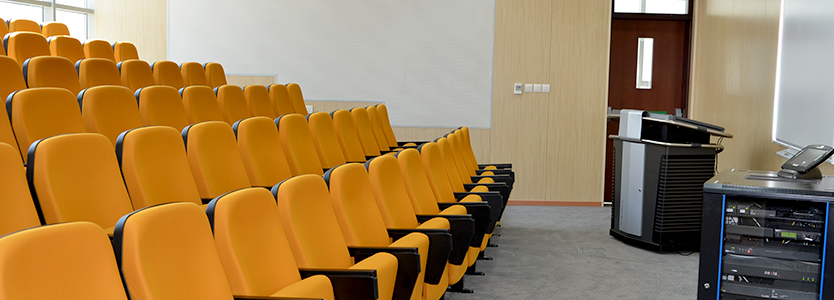
Sohar University classrooms and labs are equipped with a variety of technologies to enhance teaching and learning experience.
Computer Classrooms
All classrooms on campus are equipped with computers used for teaching purposes. These computers are connected to the university network and to a data show projector or LED screen for presentation purposes. Many classes are equipped with sound system to support listening or in presenting audio contents.
Theatres (Smart board rooms)
There are 8 Theaters equipped with an integrated Audio-Video system- podium- and smart boards to support the interactive education. Each theatre includes a computer, network and Internet access, screen, and overhead projector with sound system. These theatres are available for instructor lectures, student presentations, as well as academic and extracurricular events.
Computer Labs
The university has more than 20 computer laboratories, including 7 virtual desktop labs (VDI), a free-access lab, and a multimedia lab. In total, there are around 900 computers available.
Computer labs used for free access, teaching and self-training and to provide students with space and time to work, practice and do their projects and assignments.
SU utilizes Microsoft Exchange email. Email can be accessed through the web, through the Outlook desktop client, or on mobile devices. For assistance with accessing email or configuring desktop or mobile email please contact Help desk Extn: 333 or email: askits@su.edu.om
SU students E-Mail
SU Information Technology Services (ITS) provides every student with their own Office 365 E-Mail account. E-mail address login credential is students ID@students.su.edu.om
In order to have access to your SU e-mail account you will have to know your username and password.
Frequently asked Question (FAQ's)
What is the full e-mail address I can use to access?
Students who registered before Jan 2018 they can use
Student_ID@students.soharuni.edu.om
Students register in Jan 2018 and up
Students_ID@students.su.edu.om
What time zone should I choose when setting up my email account?
The correct Time Zone is (UTC +04:00) Abu Dhabi, Muscat
I cannot send or receive any e-mails?
Delete some unwanted messages from your Outbox, Sent items, and Inbox. If you still experiencing issue, please Submit a ticket here OR visit IT Support center in LRC 2nd floor.
How can I set my SU E-mail account on my phone?
Set up your E-Mail account on your phone, by following steps below:
• for iOS
• for Android
How do I join the Library?
If you are an SU Faculty, staff or student with a valid SU Card, then you are eligible to use the Library.
I have some doubt related to my Microsoft Office 365 email account?
Visit IT Support center in LRC 2nd floor.
Information Technology Services is responsible for securing Sohar University’s technology infrastructure and data. Cybersecurity is the responsibility of everyone on campus; therefore, we strive to build a community that is aware of cyber threats and works together to maintain a safe and secure digital environment.
To achieve this, we encourage all members of the university to stay informed about cybersecurity risks, follow best practices, and comply with security policies.
Report Security Incidents
We believe that cybersecurity is shared responsibility, we would encourage every member of Sohar university to report any potential security incident to IT team.
Please report all potential malware or phishing emails to itsec@su.edu.om or visit our IT support center in LRC- second floor.
Top 5 Tips for cybersecurity:
- When you doubt, Delete it. Posts, on-line advertising or links in emails used usually to compromise users accounts and data, so when you suspect any received email, tweet or link and you don’t identified the source, just delete it or mark it as junk, in addition report the incident to itsec@su.edu.om
- Pay attention to URL. Be careful on opening websites, as in many cases malicious website could be very similar to legitimate sites, and could differ only in one letter or it has a different domain.
- Use Only Strong Password. Weak passwords is very easy to be cracked to avoid risk on your data and devices, use only strong password. Strong password usually formed from long sentence with numbers and symbols.
- Keep your devices updated and clean. The best defense against security threats is keep your system updated, latest Operating system updates, latest updates on applications and latest updates of anti-virus.
- Don’t communicate your information. Be careful to not communicate your personal information to any requester, even if it sounds good to do, as your information is the most valuable asset that can lost.
Student Printing Services
- Sohar University Provide 1000 pages per semester for each MHE Sponsored student.
- Students need to use their on username and password to access photocopier and remember to log off after usage.
- Students can send their print request from any labs inside the campus and they can release any one of the nine student’s Photocopier located in different location.
- With the help of Mobile Printing Student can send their print request from any devices connected to Wi-Fi inside the campus.
- Students can check their print account details via Su-website->My Su->Printer Details.
- Students can raise their printing related issues via telephone located at each Photocopier.
- We are providing sample documentation how to use printing solution at each notice board nearby photocopier and in Su-website also.
- Students can use 24-Hour photocopier service.
- Student photocopiers are only for students printing purpose Staff access denied.
Staff Printing Service
- Staff can use photocopier in each Faculties/Departments.
- Staff can use their own staff username and password or Five digit code provided by ITS.
- Staff can send their printing jobs from any computer from inside campus and they can release their job any staff photocopier inside the campus.
- At present, there is no limit for staff printer usage, but monitored by the management.
- With the help of mobile printing, they can print from any devices connected to Wi-Fi.
- Staff can raise their printing related issue via SUCRM, email or by phone.
Edugate
Edugate is a system composed of several services for visitors to the gate and the students and teachers. It eases dealing with the academic system of the University and provides as much information to it’s users, while ensuring the validity and accuracy of information and updated directly. Edugate works in both Arabic and English, smooth and can be used by everyone.
SULMS
SULMS is Sohar University Learning Management System integrated with Moodle 4.x version. SULMS contains course materials categorized as Weekly / Topics, Assignments, Online Quiz, Plagiarism, chat with class teacher etc.
Mobile Application
Sohar University mobile application enables students to apply for services in an ease way. The application starts with accommodation and transportation services, and very soon it will cover more services.
Staff Portal
Staff Portal is a system built in SharePoint which is used to track, manage and store documents. It has capability of keeping a record of the various versions created and modified by different users in University.
ITS provides Wi-Fi network coverage in University throughout every building on campus as well as many common outdoor areas. Wi-Fi networks available based on user type.
Staff (Corporate):
Corporate Wi-Fi network for staff and faculty. Login to this network using your SU username and password. Only staff and faculty can access to this network. User can connect only two devises in same time.
PLEASE NOTE: If you are unable to connect your device, please visit the IT support center for assistance.
Student (Student):
Student Wi-Fi network for SU students. Login to this network using your SU username and password. Only students can access to this network. user can connect only two devises in same time.
PLEASE NOTE: If you are unable to connect your device, please visit the IT support center for assistance.
EDUROAM Wi-Fi:
eduroam (education roaming) is a secured wireless network service that allows students, staff, and faculty to use their home institution’s wireless credentials to access wireless network services, when visiting other eduroam participating institutions, without having to set up a guest account.
Guest Wi-Fi:
Guest should request the ITS support for free Wi-Fi access using Guest SSID and ITS Support will provide the credential for limited time.
Visitors can join our campus Wi-Fi guest network on their mobile devices. To join simply follow these steps:
- When on campus, access your mobile device Wi-Fi settings
- Select the SUGuest network
- Open a mobile browser on your device
- When redirected, accept the SU terms and conditions of use
Your guest access will last for 24 hours – enjoy!
Department Structure and Team
- Eng. Ibrahim Al Farsi
System Administrator
- Mr. Senthil kumar
- Mr. Abdullah Al Shibli
Network Telecom & Security Engineers
- Mr. Syed Shah
- Ms. Aisha Al Moqbali
Audio / Video and Cabling Technician
- Mr. Khalifa Al Maqbali
Physical Security and Cabling Technician
- Mr. Ramesan Kariat
Head Software and DB Admin
- Mr. Ehab Al Ghoul
Software Specialist / E-Learning Support
- Mr. Ravindran Ramabadran
Software Developer
- Mr. Mubasher Ishaq
- Ms. Papiya Bhattacharya
Webmaster
- Ms. Amira Al Fazari
Helpdesk Team Leader
- Mr. Sulaiman Al Shibli
Helpdesk Support
- Ms. Sheikha Al Quraini
- Ms. Asiya Al Washahi
- Ms. Laila Al Maqbali
- Ms. Amna Al Shibli
- Ms. Roqaia Al Khair
- Ms. Sumaiya Al Shibli
Lab Controller
- Mr. Fahad Al Shibli